 Gemini4Neon
Gemini 4 Neon · 3D Model Workbench
Tell Neon exactly which parts to change
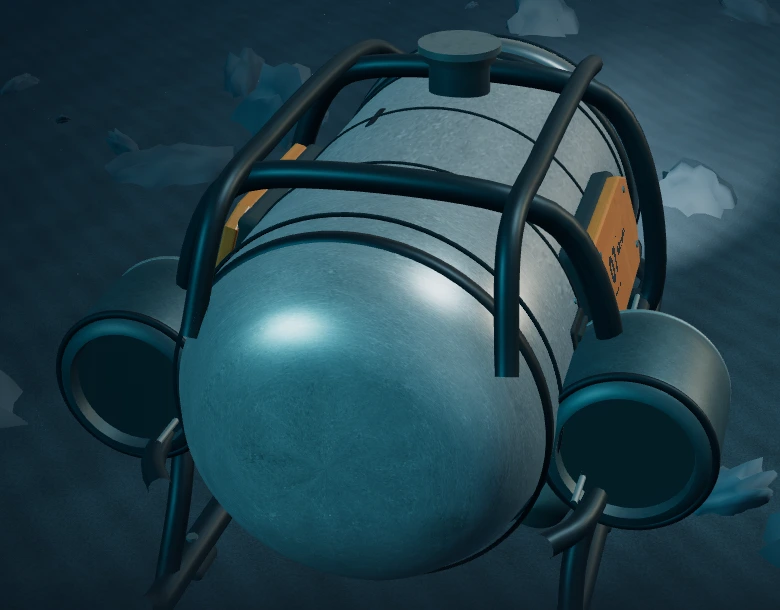
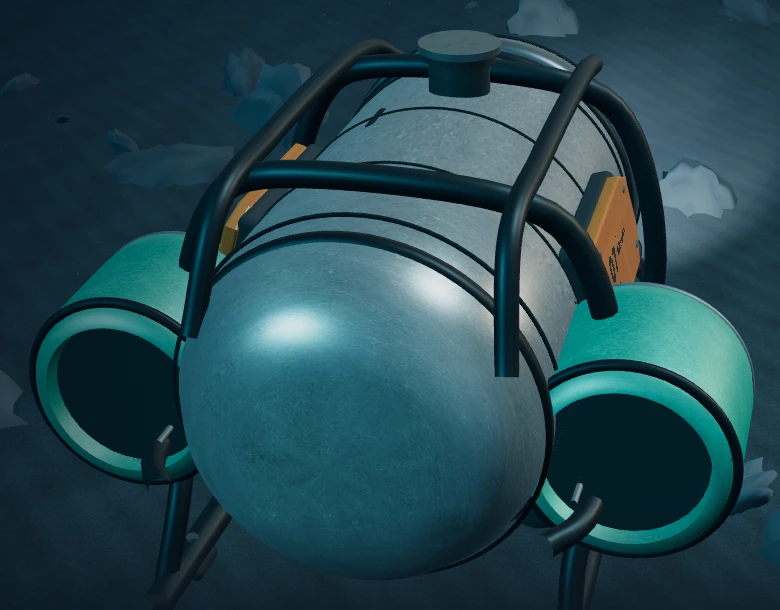
Make both thruster housings bright teal (#34D9C0) and scale both thrusters up by 25%. Keep their positions and orientations and leave all other parts unchanged.
- Parts changed
- 2
- Parts preserved
- 13
We checked the hull, frame and spotlights against the original. The new color and scale are included in the GLB export.
From a prompt to an editable 3D model
Describe a vehicle, a game prop or a product concept. Gemini 4 Neon turns your prompt into a scene plan. The 3D Studio builds the geometry and materials in your browser so you can inspect, revise and export the result.
Describe the object
Open 3D Studio and explain what you want to build. Start with a silhouette, then specify the parts, materials and colors that define it.
Inspect it in 3D
Rotate and zoom to check the silhouette, the back and the spacing between parts. Switch on the submersible’s lights to see how they illuminate the scene.
Edit one part at a time
Name the part and the change you want. Try turning both thruster housings teal while the cabin, rails and lights keep their original finish.
Export the GLB
Download the current model, including your changes. Open it in a GLB viewer or import it into a compatible 3D tool.
What you can do in 3D Studio
Design from a prompt
Describe a vehicle, product or prop and get a scene you can inspect.
Inspect from every angle
Orbit the sample and zoom in to see how the parts fit together.
Direct the material
Change color, roughness or metallic finish on the selected parts.
Move individual parts
Use a prompt to adjust position, scale or rotation within the scene.
Keep a model you can reuse
Download the current geometry and materials as a GLB.
Try the sample first
Rotate, light and export the submersible without signing in.
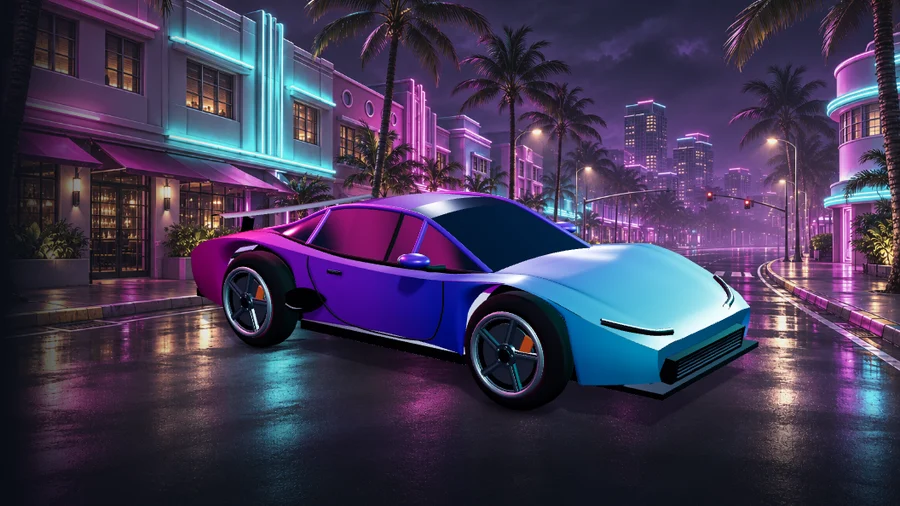
Afterglow GT
A sports car on a rain-slick street. Rotate the car, change its paint and sign, or download the scene to open offline.
Explore Afterglow GTImage and video studio
Fixed quote22 creditsResolution: 1K · Background: Automatic · Image size: Square HD · Quality: High · Output format: PNG · Output images: 1
This preset uses the fixed credit quote shown. Auto is also quoted in advance. Prompt complexity and token usage do not add a charge after confirmation.
Cases and starting points
Sample Image
Forest tram after rain
From stills to motion
Compare how framing, light and movement change a scene. Borrow a prompt from the examples below to start a still or a video of your own.
How to use
How to use an AI image generator in four steps.
- 01
Choose image or video
Open the AI image generator workspace. Choose Image or Video, then From text or From image. A dedicated tool route provides a starting point for a product shot, portrait or animation in the same editor.
- 02
Describe the scene
Give the AI image generator a subject, setting and lighting direction. For video, add one action and camera movement. Select a PNG, JPEG or WebP reference up to 10 MB, inspect its local preview or remove it.
- 03
Fine-tune the format
Choose a model and review supported controls. An AI image generator brief for a tall post needs different framing from a wide banner. Check compatible options after switching models, then revise the description for your workflow.
- 04
Keep a draft for your next creation
Keep a browser draft when storage is available. Re-select reference files after refreshing. Review your AI image generator settings and credit quote before explicitly confirming a task. Labelled examples are inspiration, not results of your draft.
Creative examples
Espresso filling the glass
A fragrance moment in the glasshouse
A red dress turning in the courtyard
A camera turn around a parkour jump
A world unfolding from a book
A conversation over coffee
A surprised look from the park bench
A bicycle delivery through the market
A natural camera-facing expression
Nine frames, different performance moods
A weathered face by the sea
Amber glass in morning light
Gemini4Neon Pricing and Credit Plans
Subscriptions and one-time credits for AI image and video creation.
Cancel future renewals anytime
Lite
Save about 50%$0.025 /credit
$179.00 billed yearly · Save $179.80/year
600 credits/month
Video models


Image models
 GPT Image 2Fixed quote: 22 credits · Default settings
- GPT Image 2.5 FlareFixed quote: 4 credits · Default settings
- GPT Image 2.5 SunburstFixed quote: 4 credits · Default settings
 Nano Banana 2 LiteFixed quote: 5 credits · Default settings
- Nano Banana 2Fixed quote: 8 credits · Default settings
- Nano Banana ProFixed quote: 15 credits · Default settings
 Seedream V5Fixed quote: 14 credits · Default settings
- Seedream Pro LayerizeReserved credits: 119 credits · Default settings
 Grok Imagine ImageFixed quote: 4 credits · Default settings
- Image and video model access
- The same model and settings use the same credits across plans.
- Pay yearly. Credits arrive monthly and expire at each monthly window end. Unused credits do not roll over.
Standard
Save about 50%$0.017 /credit
$299.00 billed yearly · Save $299.80/year
1,500 credits/month
Video models
Image models
- GPT Image 2Fixed quote: 22 credits · Default settings
- GPT Image 2.5 FlareFixed quote: 4 credits · Default settings
- GPT Image 2.5 SunburstFixed quote: 4 credits · Default settings
- Nano Banana 2 LiteFixed quote: 5 credits · Default settings
- Nano Banana 2Fixed quote: 8 credits · Default settings
- Nano Banana ProFixed quote: 15 credits · Default settings
- Seedream V5Fixed quote: 14 credits · Default settings
- Seedream Pro LayerizeReserved credits: 119 credits · Default settings
- Grok Imagine ImageFixed quote: 4 credits · Default settings
- Image and video model access
- The same model and settings use the same credits across plans.
- Pay yearly. Credits arrive monthly and expire at each monthly window end. Unused credits do not roll over.
Pro
Save about 50%$0.014 /credit
$599.00 billed yearly · Save $599.80/year
3,600 credits/month
Video models
Image models
- GPT Image 2Fixed quote: 22 credits · Default settings
- GPT Image 2.5 FlareFixed quote: 4 credits · Default settings
- GPT Image 2.5 SunburstFixed quote: 4 credits · Default settings
- Nano Banana 2 LiteFixed quote: 5 credits · Default settings
- Nano Banana 2Fixed quote: 8 credits · Default settings
- Nano Banana ProFixed quote: 15 credits · Default settings
- Seedream V5Fixed quote: 14 credits · Default settings
- Seedream Pro LayerizeReserved credits: 119 credits · Default settings
- Grok Imagine ImageFixed quote: 4 credits · Default settings
- Image and video model access
- The same model and settings use the same credits across plans.
- Pay yearly. Credits arrive monthly and expire at each monthly window end. Unused credits do not roll over.
Max 1×
Save about 50%$0.012 /credit
$1,199.00 billed yearly · Save $1,199.80/year
8,000 credits/month
Video models
Image models
- GPT Image 2Fixed quote: 22 credits · Default settings
- GPT Image 2.5 FlareFixed quote: 4 credits · Default settings
- GPT Image 2.5 SunburstFixed quote: 4 credits · Default settings
- Nano Banana 2 LiteFixed quote: 5 credits · Default settings
- Nano Banana 2Fixed quote: 8 credits · Default settings
- Nano Banana ProFixed quote: 15 credits · Default settings
- Seedream V5Fixed quote: 14 credits · Default settings
- Seedream Pro LayerizeReserved credits: 119 credits · Default settings
- Grok Imagine ImageFixed quote: 4 credits · Default settings
- Image and video model access
- The same model and settings use the same credits across plans.
- Pay yearly. Credits arrive monthly and expire at each monthly window end. Unused credits do not roll over.
Payment and confirmation
Pricing is shown for reference. Online checkout is not available at launch.
Credits, cancellation and refunds
Pay yearly. Credits arrive monthly and expire at each monthly window end. Unused credits do not roll over.
Subscription credits expire at each paid monthly window end. Cancellation stops the next renewal; paid access continues to period end.
One-time credits are valid for 12 calendar months. A pack does not start a subscription.
Cancellation stops future renewals. Refunds are reviewed separately. Approved purchase reversals reduce only that purchase’s entitlements proportionally; used or reserved credits require review. Other purchases are unaffected.
Explore the tools
Built around what you want to make.
3D Studio questions
How does Gemini 4 Neon help make a 3D model?
It interprets your prompt and returns a structured description of the scene. The Gemini4Neon viewer turns that description into geometry and materials and exports the result.
What can I make with the 3D workbench?
Try a stylized vehicle, a game prop or a product concept. Prompts with clear silhouettes, distinct parts and simple materials work best.
Can I change the sample without rebuilding the car?
Yes. Use the sample prompt and change only the paint or sign field. The same car and street scene stay in the viewer.
What can I download?
Download the active model as a GLB. The Afterglow GT example also has a self-contained HTML download that includes the street, sign and wet-road reflections.
Do I need an account?
You can rotate, recolor and download the sample as a guest. Generating a new model or requesting an AI revision requires a verified account and is subject to daily limits.
What is the difference between Neon and Carbon here?
This homepage uses Neon to edit the submersible. Both models are available in 3D Studio. The separate Carbon planner helps write prompts for images and videos.
Can I switch on the lights without signing in?
Yes. Rotation, lights, reset and GLB export of the submersible sample run in your browser.
Which parts can I edit?
Name an existing part and ask for a change to color, roughness, metalness, position, scale or rotation. The submersible keeps its existing part shapes and names.
Can the 3D Studio build a new model from text?
Yes. Open 3D Studio and start a new model to generate an editable scene from your description with a verified account.
Are image and video tools included on this page?
Yes. The image and video studio below includes examples, prompts, pricing and a tool directory.